Email notices and backups
Choose which events email you, see what's been sent, and set the daily backup.
Owners
Go to Settings › Mail & backup.
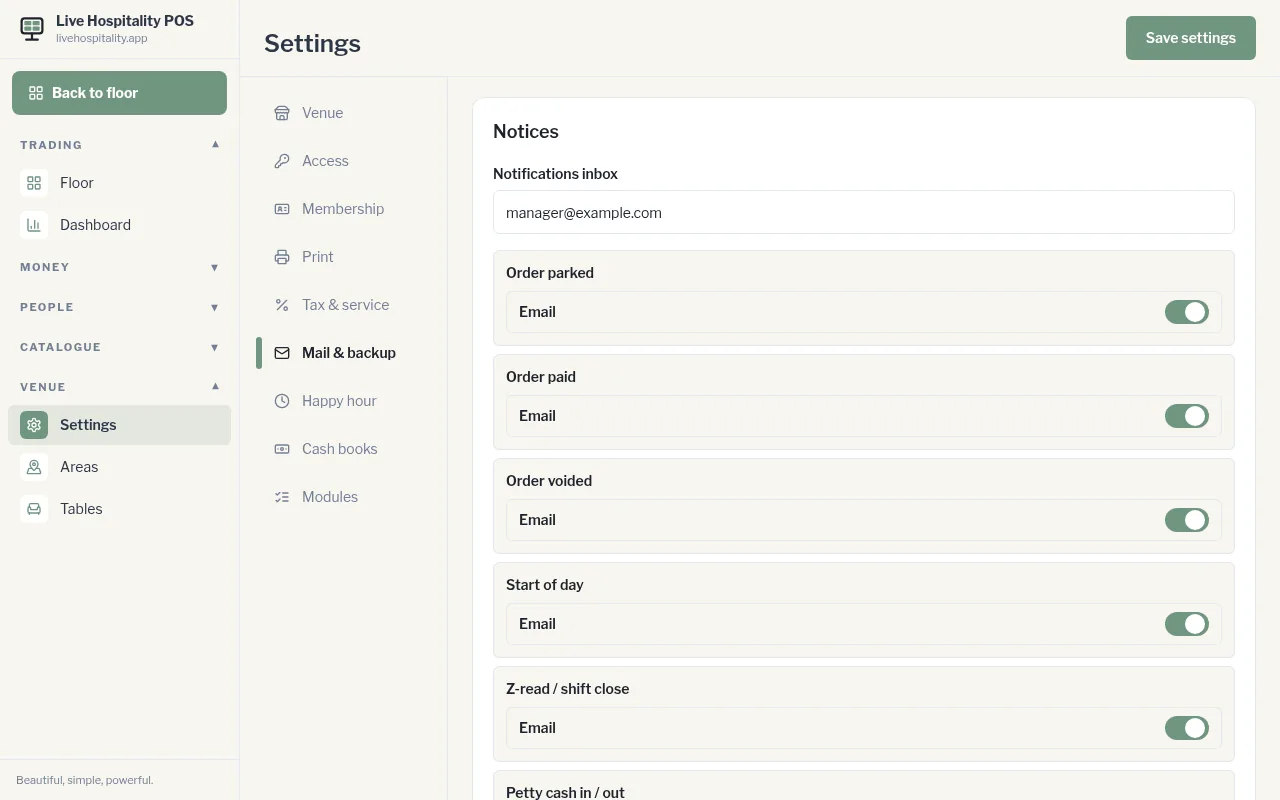
Notices
- Enter the Notifications inbox, the email address that receives notices.
- Turn Email on or off for each event: - Order parked, Order paid, Order voided - Start of day, Z-read / shift close - Petty cash in / out, Stock purchase, Stocktake report - Admin report export, New member
- Tap Save settings.
If Telegram is set up for your venue, each event also has a Telegram switch.
Sent mail
Sent mail lists the notification emails this till has sent: the subject, who it went to and when. If a notice failed, it shows not sent. Tap one to open it.
Backup
The till backs itself up once a day. The file is kept on the server and emailed to the notifications inbox.
- Set the Daily time.
- Tap Save time.
Last backup shows when the last one ran.