Areas and tables
Add the rooms and tables that make up your floor.
Owners and managers
Areas
Areas are the tabs across the floor screen, for example "Inside", "Courtyard" or "Bar".
- In Admin, go to Venue › Areas.
- Tap Add Area, enter the Area name, and leave it Active.
- Tap Save.
To hide an area without deleting it, set it to Inactive.
Tables
- Go to Venue › Tables.
- Tap Add Table.
- Enter the Table name, choose its Area and set its Capacity.
- Tap Save.
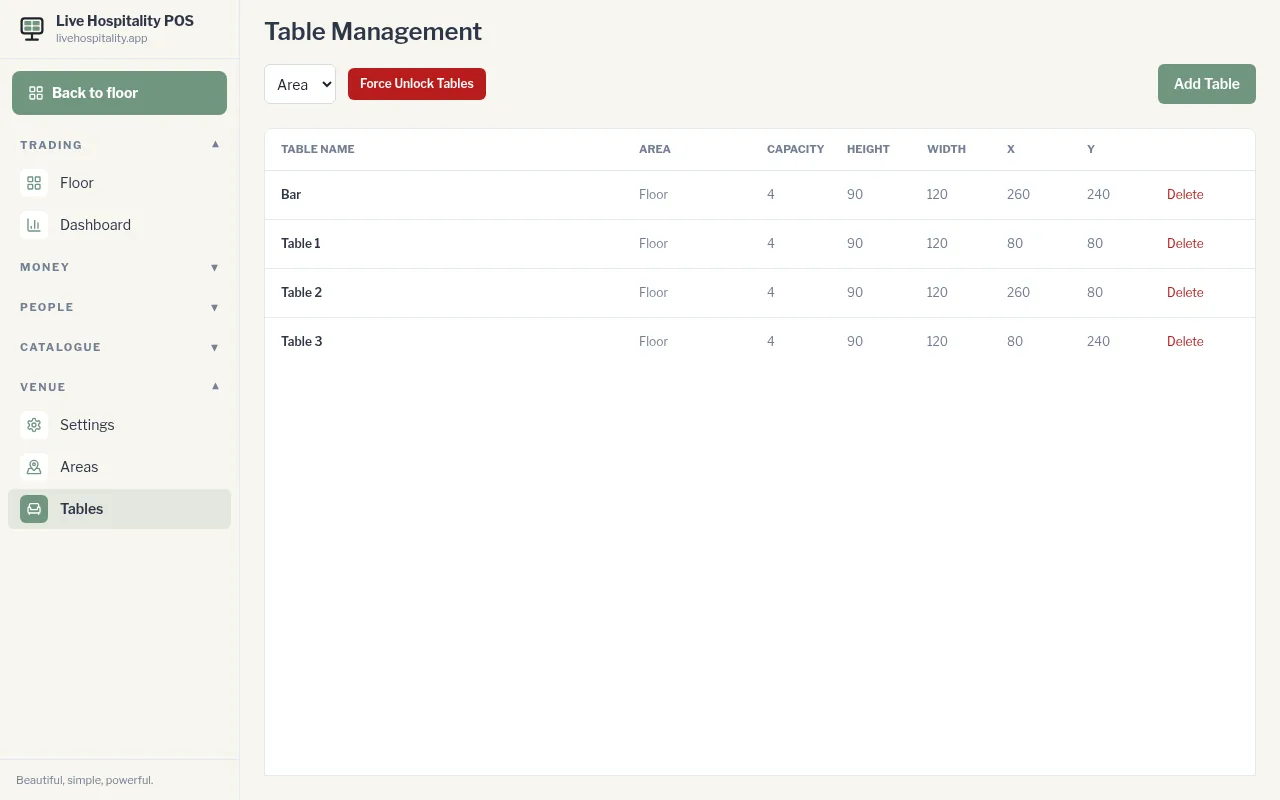
A new table starts in the corner of the floor. Drag it into place with Edit the floor layout.
To change a table, tap its name. Its position and size stay as they are. To remove it, tap Delete.