Record a stock purchase
Log a delivery or shop run so stock levels and costs stay right.
Bar and floor staff, managers
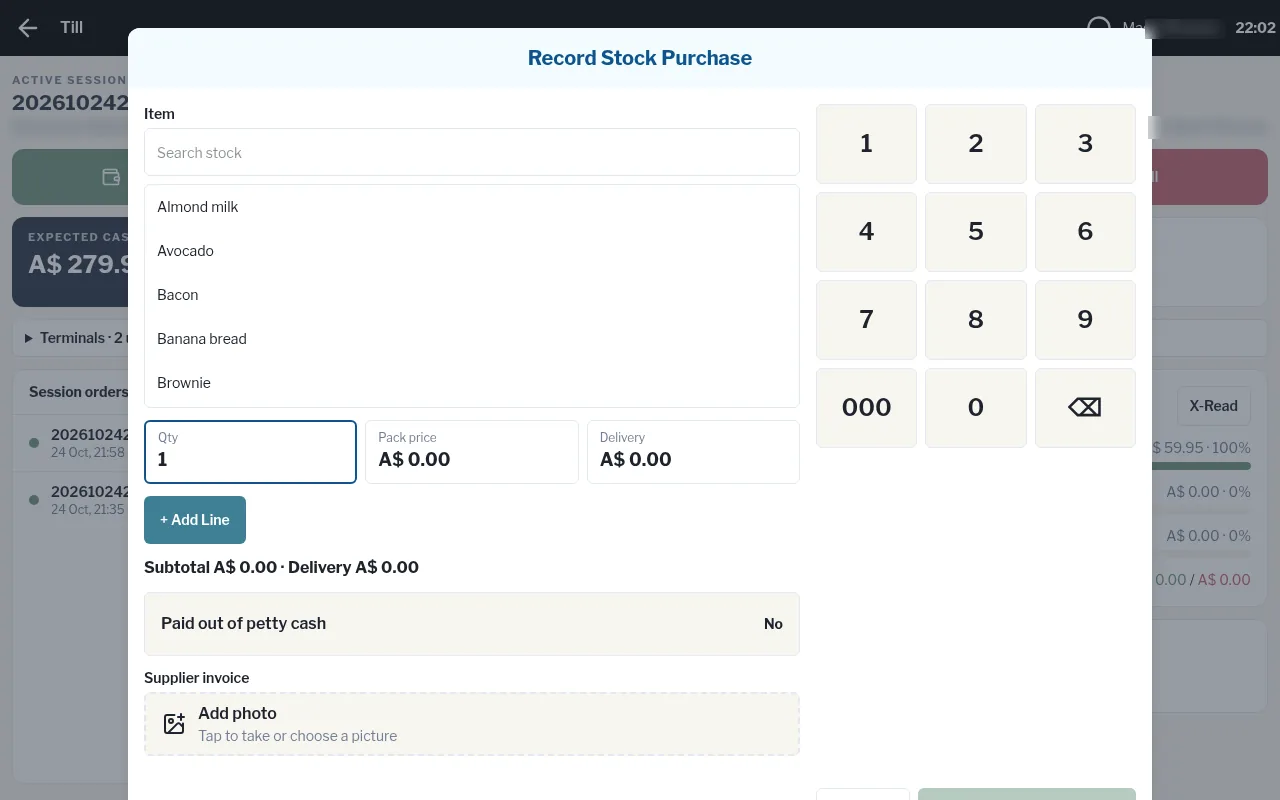
- Tap Till in the top bar, then Record Stock Purchase.
- Under Item, search for the stock item and tap it.
- Key in the Qty (number of packs), the Pack price, and any Delivery charge.
- Tap + Add Line. Repeat for each item on the invoice.
- If you paid from the cash drawer, turn on Paid out of petty cash.
- Under Supplier invoice, tap Add photo and photograph the invoice.
- Tap Submit Stock Purchase.
What happens next
- Each item's stock goes up by the number of packs × the pack size set on the item.
- The item's pack cost is updated to the new price, with the delivery charge shared across the lines. This keeps your gross profit figures accurate.
- If Paid out of petty cash is on, the total is also recorded as petty cash out, so the drawer still balances.